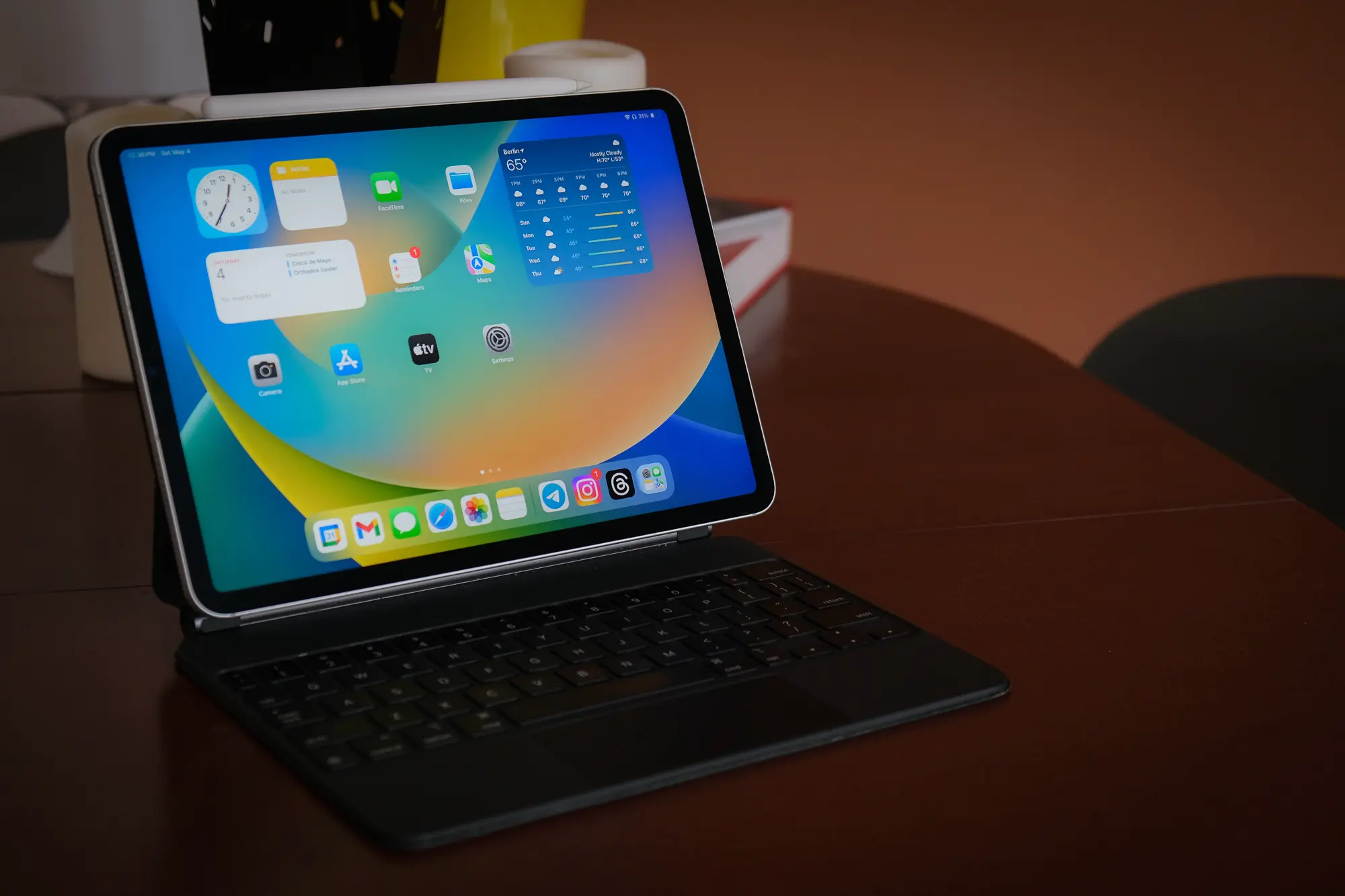
The iPad is far and away the world’s most popular tablet, but can it really replace a laptop? In 2024, iPadOS is more capable than ever — it supports an external mouse and keyboard, split-screen apps, and even looks and feels like a laptop when equipped with Apple’s Magic Keyboard accessory. But the iPad still has serious shortcomings as a productivity platform that may make it unsuitable for many workflows — here are a few of the biggest reasons I chose to replace it with my MacBook Air 15. And, at the end of the day, why my giant MacBook is what goes in my tech travel bag.
Poor multitasking and very basic window management
iPadOS is based on the iPhone’s iOS operating system, a mobile-first platform originally designed for smartphones. I can speak from years of experience when I say that it remains very noticeable, even in 2024, when using the iPad for complex multi-window workflows.

The iPad supports basic app split-screening so that you can view and interact with two windows side by side. Copying and pasting text between two apps is a common use case here. But iPadOS doesn’t allow arbitrary resizing of those windows (only a few preset proportions are available), and in the end, the limit is two apps. Swapping one of the apps you’re split-screening for another is tedious, too — no simple foregrounding and backgrounding behavior exists in iPadOS. Nor can windows float in iPadOS, they either take up the entire screen or are split-screened with a second app. (The one exception is picture-in-picture video, for apps that support it.)
Finally, the iPad often will not keep apps “in memory” in the background for very long — if you’ve been editing a document in Word and need to reference a tab you had open in Safari, you may find that Safari has to reload all the content on being opened again. The same frequently happens with many apps, because this is the designed behavior of a mobile operating system. There is no way to “force” iOS to keep an app in memory, which can be seriously annoying when you’re frequently switching between them. Maybe you’d been editing something in Google Docs or looked at a folder in Dropbox an hour ago and need to reference it — only to find the app in question just re-launches to its home interface because iPadOS pushed it out of memory. (To be fair, this is also down to how these apps are written, to some extent. They could “recall” their last state and reload to that location, but many do not.)

Here’s a way these limitations can manifest. Imagine you’re on a Zoom call and you need to reference an email while you’re speaking. On iPadOS, Zoom will simply stop sending your video feed if you take the Zoom app out of focus (open another app, go to homescreen). Meanwhile, the email you want to reference isn’t there when you open Gmail, because Zoom pushed Gmail out of memory, and now you need to find that email again! Can you imagine if this was the behavior on an OS like Mac or Windows? People would throw their laptops out the… windows.
No true background apps, degraded app support
Do you use Grammarly? On Mac, the Grammarly app can correct your spelling and Grammar running as an over-the-top background service across the entire MacOS. You’ll get suggestions in any app you write in, from Safari to Word to Whatsapp. If you’re planning on writing on an iPad with an external keyboard, Grammarly basically doesn’t work. The app runs as a third party keyboard, and inline corrections simply don’t function when an external keyboard is attached. This is because iPadOS doesn’t support the kind of background app functionality necessary for Grammarly to work as it does on MacOS (or Windows).
The specific example above is one in the broader set of limitations you’ll face trying to use iPadOS with applications that run as always-on services in the background on a desktop OS. And if an over-the-top function or behavior isn’t built into the iPad’s operating system, there are rarely ways to add it. Want to integrate a universal color picker as a keyboard shortcut? Can’t do it. Want to run an ad blocker across all applications? No dice. Want to replace the native screenshot UX with something better? Impossible. Need a clipboard manager? They’re forbidden on the App Store. The App Store, by the way, is Apple’s gatekeeper for all content on the iPad (and iPhone), and Apple solely determines which kind of apps it wants to allow on that portal. On Mac, you can download and install any application you like — granting it effectively any set of permissions, too. On iPadOS, there are far more limits placed on the type of apps available and the behaviors which they’re allowed to engage in. (People in Europe are getting some escape from this via 3rd party app stores, but it remains to be seen what developers will build — clipboard managers seem to be on the menu.)
The app ecosystem on iPadOS is pretty robust when it comes to mainstream tools, but a word of caution: Not all apps are created equally. For example, Google Docs, Sheets, and Slides on the iPad are genuinely terrible apps. They perform poorly and support a small subset of the features of their full, browser-based clients on MacOS, Windows, and ChromeOS. And trying to run those browser clients on Safari on an iPad (even a Pro with an M-series chip) is miserable, they render at a positively glacial speed and are extremely buggy with the iPad’s emulated touch “mouse cursor.” The same goes for the Adobe suite of applications — while many are technically available for iPadOS, they don’t offer the full experience of their desktop-class counterparts.
The iPad’s terrible file management
If you manage a lot of files locally, iPadOS is among the worst platforms imaginable for this kind of workflow. Not only does iPadOS lack a traditional desktop layout, but the operating system is designed explicitly to make understanding and accessing local storage structures tedious. Dragging and dropping files from folder to folder with your mouse is something you really take for granted until it’s no longer an option. Add to that the fact that finding files on an iPad is a legitimately obnoxious experience (did it save to the app’s local folder? Or downloads? Or to the app’s iCloud folder?) and this should be a very big red flag for anyone expecting a typical desktop file management workflow with a touchscreen.

Third-party file managers are available, but they don’t replace the native file manager for contextual actions. And just because it bears saying: You can’t “save files to the desktop” on an iPad. There is no desktop. It’s one of those things that’s kind of obvious, and yet, typing it out makes the iPad seem vaguely silly! I’m not saying iPadOS should work like a typical desktop OS for file management, but this is about illustrating a broader point: Just because an iPad with a keyboard and a trackpad looks like a laptop does not make it a laptop.
Disappointing keyboard and mouse support
iPadOS absolutely works with a keyboard and mouse, including Apple’s legitimately wonderful Magic Keyboard case. I’ve used one with my iPad Pro for years, and it’s one of the company’s best-designed hardware products. It’s also by far the best way to use an iPad with a mouse and keyboard, given the trackpad allows the use of gestures for things like app switching and the expose view, or pinch to zoom. But it’s still pretty clear day to day that iPadOS is a touch-first operating system that has had keyboard and mouse support foisted onto it.

Common use cases like text selection feel bizarrely imprecise on iPadOS compared to my MacBook Air and MacBook Pro laptops — as though the iPad sort of drunkenly guesses at what you’re trying to select in a text field. Right-clicking (long press, secondary click) on iPadOS is also extremely limited, supporting only the very small stack of actions iOS natively offers on a long-press of content. Apps in iOS cannot build their own contextual right-click actions, either — such behavior must be built into elements of the app interface directly, because Apple does not allow any modification of the right-click behavior on iPadOS. Yes: This means that right-clicking in Google Docs or Adobe Photoshop, for example, is effectively useless for anything but basic copying and pasting. Again, it feels almost above saying, and yet, to state it makes it clear how limited iPadOS actually is to use in practice for particular workflows. It frequently makes many otherwise very simple actions incredibly cumbersome to achieve.
Keyboard shortcuts are also a mixed bag — generally, apps support many of the given keyboard shortcuts they would on desktop. But I’ve found that very common, near-universal actions like text selection or copy and paste sometimes just don’t work! Apps can arbitrarily deny you the ability to select text on iOS (notably, Android apps can’t do this!), and the copy and paste functionality is extremely wonky in my experience, sometimes requiring you to hit Cmd+C twice to actually copy what’s selected. And my “favorite” input bug in iPadOS that has been around for actual years: Sometimes the mouse cursor will just fly up to the top of the screen and close the app I’m using for no particular reason!

On the list of things that feel silly to say: There is no proper mouse “cursor” on iPadOS. You get a big, translucent floating circle that emulates a finger touching elements of the interface that disappears after a few seconds. This means you can’t use the cursor to effectively track your place in a document or a spreadsheet. Also, something that I think goes unstated by almost anyone: Precisely clicking very small areas simply isn’t supported on the iPad with a mouse. Because iPadOS is merely emulating touch with the mouse cursor, the touch targets are still the same size as they would be with your fingers. If you want to-the-pixel precision input, you’ll need to use an Apple Pencil. To be quite honest, I find the Apple Pencil a much better experience than a mouse for selecting text, cropping images, and scrolling through pages on the iPad than using the Magic Keyboard’s trackpad. It’s nice! But the fact that you need yet another piece of hardware to get this table-stakes laptop experience is pretty disappointing.
Final thoughts
While I do love that the iPad works well with my iPhone 15 Pro (that I otherwise Do Not Like), the same can be said of my MacBook Air 15. In fact, pretty much everything my iPad Pro does, my MacBook does better. It has a better keyboard, a better trackpad, vastly superior window management, true multitasking with multiple desktops, multiple profile support, proper desktop apps, and contextual right-clicking that’s actually useful (truly, this drives me nuts on the iPad).
The iPad is better at touch interaction (because the MacBook obviously doesn’t have a touchscreen!) and for use with a stylus like the Apple Pencil. Other than being easier to fit in my bag, there’s not much else I can say about the iPad that makes me prefer it in basically any scenario. Hell, the MacBook Air 15, huge as it is, actually works better as a computer you use in your lap because the screen isn’t a big, top-heavy tablet that you have to balance on a much lighter keyboard. The MacBook is just a more livable computer in every way that matters to me.
And given the cost of a base-level MacBook Air 13 or 15 relative to an iPad Pro with a Magic Keyboard, I don’t even think there’s an argument that the iPad Pro is a good value. In fact, I’d say it’s a worse one — you get a demonstrably less capable computer for marginally less money.
So, why do you see so many iPads with keyboards at airports, coffee shops, and basically anywhere mobile productivity happens? I suspect the simple answer is that a growing number of people expect all computers to work like an iPhone, and the iPad provides that continuity. It uses touch, it’s primarily a monotasking OS, and it’s dead simple to set up and learn if you’ve used an iPhone. A Mac, by comparison, feels a bit exotic with its true desktop and top navigation menus and traditional file system. I know more than one person who’s told me they just don’t like using MacOS because they’ve never learned how — whereas an iPad is totally approachable.
I’m not saying MacOS is difficult to learn — far from it! — but that the friction most people are willing to stomach learning a new device and software is incredibly low today. People simply aren’t interested, and I don’t exactly blame them. But even if I don’t blame them, I’m certainly not about to give up on my “old fashioned” desktop OS. Even putting together the photos and text to publish this blog on WordPress would take materially longer and be noticeably more agonizing on my iPad Pro. And even with iPadOS more capable than ever, I don’t see a day on the horizon when that changes.
