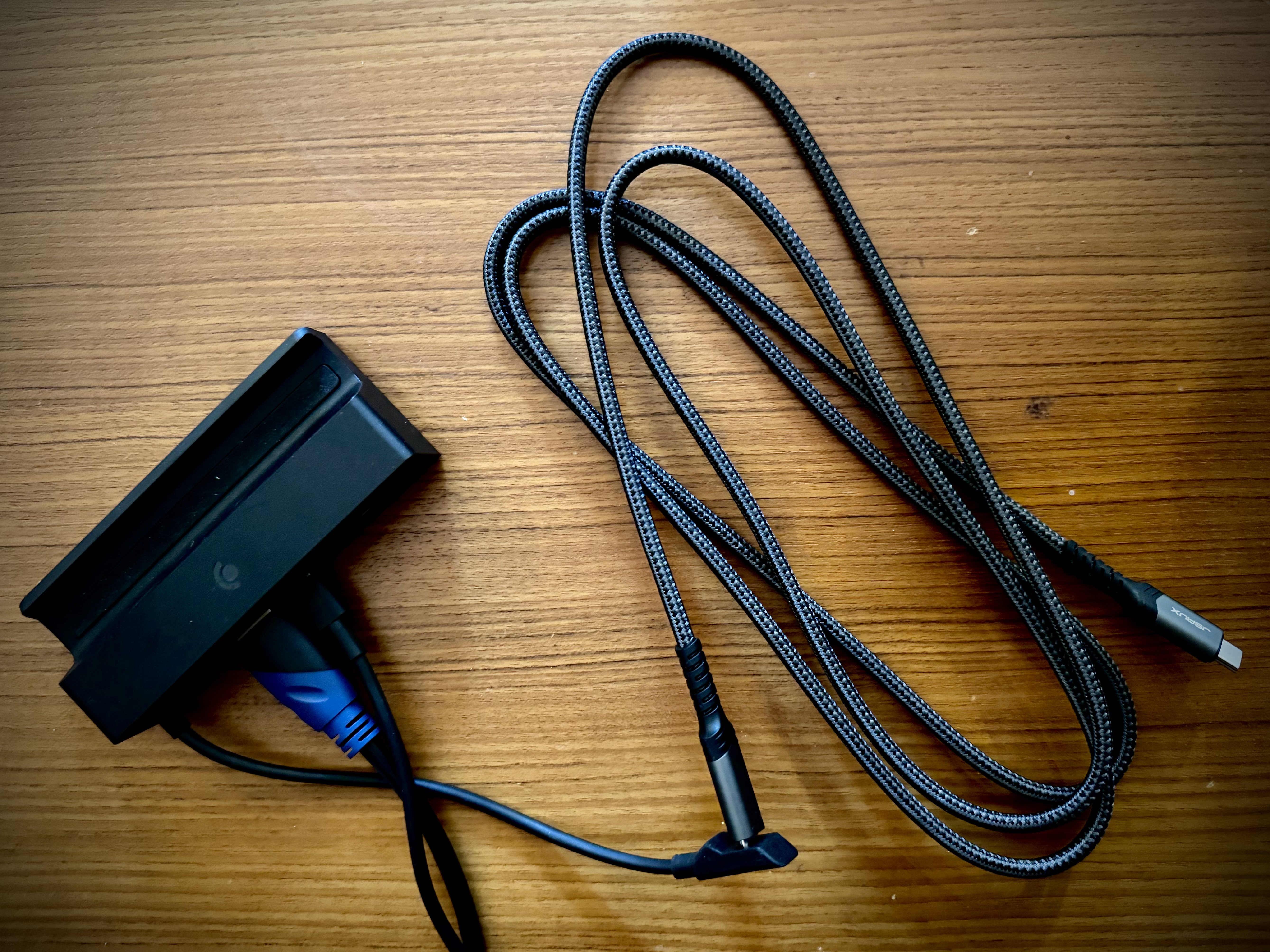
One thing I never understood about the Steam Deck Dock was why you’d sideline a perfectly good wired gamepad for a latency-afflicted Bluetooth one. With its permanently-attached USB-C cable of about 3 inches, the Steam Deck Dock is designed explicitly to keep your Deck stationary. As a dock, this product feature limitation makes conceptual sense. But in practice, I want to use the Deck as my controller. This is generally not compatible with the proscribed function of a dock.
So, why not use a Bluetooth-ready controller like the Xbox gamepad? For one, the Steam Deck’s Bluetooth is pretty buggy, and while that’s a nuisance, my core motivation for avoiding wireless gamepads is latency. For first-person titles or real-time vehicle controls, especially, the delay in communication over Bluetooth leads to a degraded gameplay experience. (Of course, I’ve heard some people don’t mind the “tiny” delay in input response, to each their own!) I over-correct or compensate for the latency by delaying my own inputs — and that’s pretty frustrating. There’s also the fact that an external controller is a totally redundant cost to incur when the Deck is a great gamepad all on its own. I legitimately love the Steam Deck as a controller.
Given the Deck Dock is limited by the length of its power cable and the attached video source cable, moving the Dock itself is generally not practical (or aesthetically appealing as a solution). But if you don’t mind a cable creeping out from your home entertainment center, there’s a simple fix: A USB-C extension cable (aka a female-to-male cable).
Here are three USB-C extension options for your Steam Deck Dock on Amazon — one 6 feet long, one 10 feet long, and the third a whopping 16 feet (around 2, 3, and 5 meters, respectively).
If you need the cable to traverse farther than that, the 6-footer vendor also has a 20-foot option. Anything longer and I’d start considering moving furniture around. All three cables are USB Gen 3 and support USB-PD and video transfer (this is all critical — a “power only” USB cable or a USB 2.0 cable will not work).
Having tested my own Deck Dock with a very generic USB-C Gen 3 extension cable, I’ve experienced no issues. And in theory, any spec-compatible cable should “just work” — the Deck Dock uses entirely standard USB communications protocols to pipe video, audio, control inputs, and power.
Is using a cable for your controller in 2024 particularly next-gen? I guess not. But if you’re the kind of person who travels with a Steam Deck (in my opinion, its best use case), this is a compact and cost-effective way to make your Deck Dock far more serviceable in a hotel room or short-term rental. It’s also a lot simpler than dealing with something like a Chromecast and the Steam Link app, which is contingent on usable Wi-Fi (far from a given on the road).
Read more: Is the Steam Deck a good gaming PC replacement in 2024?
4 responses to “How to use a USB-C extension cable with the Steam Deck Dock”
[…] Using the Steam Deck with a Bluetooth controller also introduces input lag you wouldn’t have on a proper game console or when using a Wi-Fi dongle with a gamepad on a PC (let alone a wired connection). This is another major drawback, from my perspective, of the big screen experience with the Steam Deck. I own a Steam Deck Dock, and in the past I paired the Deck with an Xbox controller with this setup. The latency was simply too annoying (and the Xbox gamepad’s wireless USB dongle does not work with the Deck). I ended up buying a super long USB-C extension cable to use the Deck as its own controller while “docked,” which you can read about here. […]
[…] found nothing else about the Steam Deck compelling. The performance is passable, but unremarkable. The dock accessory is legitimately baffling. (Who wants games on their TV that look, perform, and respond worse than a […]
[…] mode, the Deck’s battery is not used (i.e., the battery is idle), such as when then attached to the Steam Deck Dock. However, if the Deck’s battery charge state is below a certain threshold and the attached […]
[…] supply far more power than the Steam Deck can draw, because it’s designed for use with the Steam Deck Dock, which requires additional power for its HDMI output and USB peripheral connections. It’s […]